


How to Manage Memorize Transactions and Reminders
This article will cover setting up, editing, and deleting memorized transactions in Aptora 360®.
A Very Brief Overview
To get started, here’s a brief step-by-step flow of how memorized transactions, reminders, and reminder items connect in Aptora 360:
 🎯 Fun Fact: This brief overview (only the overview) was 100% written by our new technical support AI bot. His name is Timmy. Give him a try sometime.🔁 1. Create a Memorized Transaction
- Go to the relevant form (e.g., Invoice, Bill, Journal Entry).
- Enter the transaction as usual.
- Click Menu > Memorize.
- Save and Remind
- Set:
- Frequency (e.g., monthly)
- Next Date
- Auto-Enter or Remind Me (this is where reminders come in)
- Save.
🔔 2. Reminder Gets Created (If “Remind Me” is Selected)
- A Reminder is automatically generated based on your settings.
- This reminder will appear on the Reminder Items List and Status Bar or pop-up (based on user preferences).
📌 3. Reminder Item Appears
- On the selected Reminder Date, the Reminder Item prompts the user.
- User can click the reminder to open and process the memorized transaction.
✅ 4. Create the Actual Transaction
- From the Reminder, the user opens the Memorized Transaction.
- User reviews, makes adjustments if needed, and saves the actual transaction (e.g., invoice, bill, etc.).
- Reminder can now be cleared or marked completed.
What is a Memorized Transaction?
A Memorized Transaction is a transaction that has been saved but not posted (recorded to the accounting system). A single transaction (such as an invoice) can be copied on a schedule of your choice. Each memorized transaction can be edited individually. You have the option of creating reminders and assigning the reminders to one or more users. A memorized transactions is useful for transactions that occur on a regular basis. Examples might include a rent check, a monthly invoice for service agreements, adjusting journal entries, bills, or many other transaction types.
Using Memorized Transactions
The Add Memorized Transactions form is used to create memorized transactions. This form may be found on most financial transactions. When a memorized transaction is created, Aptora 360® will automatically create that transaction on the schedule you have selected.
What Transactions Can Be Memorized?
You may create memorized transactions for the following types of financial transactions: Sales, invoices, estimates, credits, vendor credits, checks, bills, item receipts, credit card charges, purchase orders, appointments, work orders, even journal entries. Almost all financial transactions can be memorized in Aptora 360®. Memorized Transactions List Use this list to view or edit a memorized transaction. You may right-click on a row to see a menu of options. You may double-click to open the memorized transaction. Form Access There are two ways to access the Memorized Transactions List (the master list):
- In the Search Bar, enter “Memorized Transaction List” and hit Enter.
- From the main menu, click Company | Memorized Transaction List
Field Definitions The list will have two columns: Name and Type. They are defined below. Name: Enter a name that best describes the memorized transaction. Type: This refers to the type of financial transaction you are memorizing. These include sales, invoices, estimates, credits, vendor credits, checks, bills, item receipts, credit card charges, purchase orders, appointments, work orders, journal entries, and possibly others (more could be added). How to Create a New Memorized Transaction Form Access
- You can create a memorized transaction from the Memorized Transactions List.
- You may also open a record, such as an invoice or a check, and click the Menu button. If you don’t see a More button, right-click on the form to open a menu.
The Memorized Transaction feature is available on most financial transactions (but not all). Step-By-Step 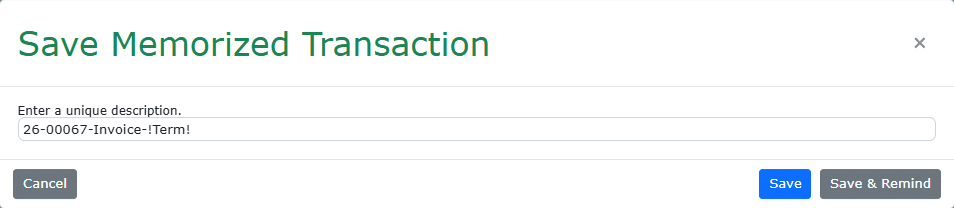
- Open the list that contains the transaction you wish to memorize (IE: sales or checks).
- Right click on the record and click Memorize. If “Memorize” is not in the list, it is likely not an option.
- Give the memorized template a name and click either ‘Save’ or ‘Save & Remind’. Note: We save a copy of the transaction as a template instead of saving the exact transaction.
Creating Reminders The New Reminder form allows you to create one or more reminders for a memorized transaction. You may want to remind yourself or a coworker about the day the memorized transaction is to be generated. You can remind as many users as you wish.
- If needed, please see ‘Field Definitions’, for a complete explanation of what each field and control means.
- Enter a Start Date, End Date, and other information as needed.
- Select a Reminder Type, Frequency, and Day Type.
- Click the ‘Save & Remind’ button. This action creates reminders for the memorized transaction. You should see a list of reminders added (near the bottom of the New Reminder form).
- When finished, please click the ‘Save & Close’ button.
- If you need to edit a reminder, you can come back to this form and make changes as needed.
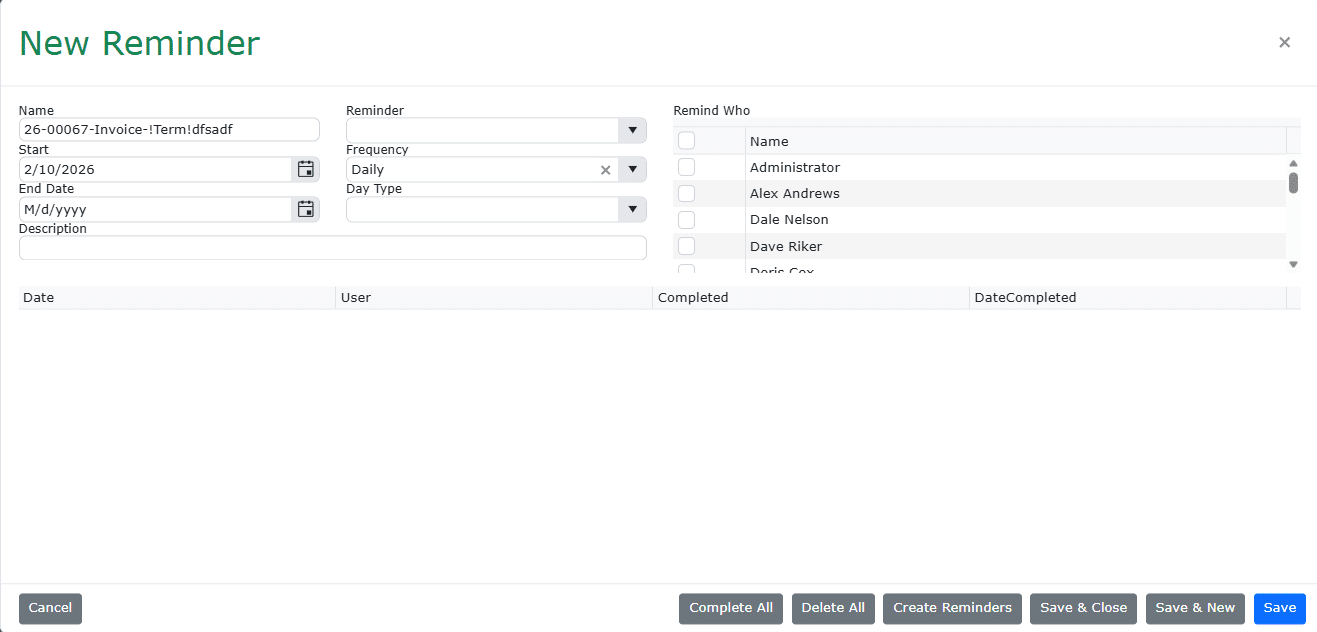
Note: Each of the reminders on this list can be edited as needed.
Field Definitions
The following is a list of fields and controls found on the memorized transaction reminder form. Name: Enter a name that best describes the memorized transaction. Reminder | Automatically Enter: Aptora 360® will automatically create the record on the date you select. This happens when you log into Aptora 360® each day. You will be asked before the transaction is created. Reminder | Remind Me: The memorized transaction will appear in the Reminders Pending area of both the Information Center and the Status Bar. Reminder | No Reminder: Aptora 360® will not remind you of the memorized transaction. The memorized transaction will not appear in the Information Center. You will need to create the memorized transaction yourself. Start Date: The first date of the memorized transaction. A memorized transaction will be created for this date. Frequency: Select the correct time frame for the memorized transaction. Example: Daily would be one memorized transaction for each day. Quarterly would create one memorized transaction for each quarter (three months). End Date: The last date of the memorized transaction. The memorized transaction is created starting with the start date and ending with the end date. Day Type | Calendar Day: A memorized transaction will be created for every day of the week, Monday through Sunday. Day Type | Next Business Day: A memorized transaction will be created for each business day of the week, Monday through Friday. Description: Enter a description of the memorized transaction. Unlike the Name field, you have much more room to fully describe the purpose of the memorized transaction. Remind Who: Select from the list of your employees in Total Office Manager. Each of those you select will be reminded (if reminder options are selected). Managing Memorized Transactions Viewing, Editing, or Deleting Follow these instructions to delete or edit a memorized transaction. 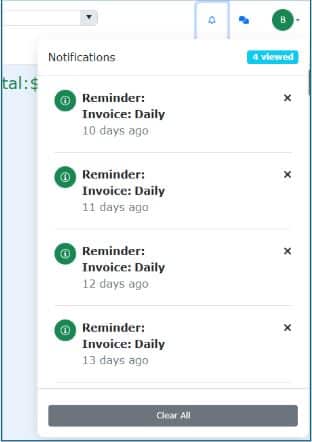
- Click Company | Memorized Transaction List. You may also use the Search Bar.
- Search for the memorized transaction, if needed.
- Right click on the memorized transaction you wish to work with.
- Select Delete to delete the memorized transaction. Select Edit to make changes to an existing memorized transaction.
Note: This process does NOT change or delete a memorized transaction that has been generated. To do this, you must locate the actual transaction (like a check or invoice) and work with it.
Generate a Memorized Transaction
Follow these instructions to generate a transaction that was memorized. This process creates a new posted transaction in Aptora 360® using memorized transaction as the source.
- Click Company | Memorized Transaction List.
- Right click on the memorized transaction you wish to work with.
- Select Generate Transaction. Aptora 360® will create the transaction.
Note: You may make all of the usual changes to the transaction once it has been created.
Changing the Item Prices or Sales Tax Amounts on Memorized Transactions
If you have set up or used memorized transactions and you change the price on an item or the rate of the sales tax used in that memorized transaction, the changes will not be reflected automatically in any memorized transaction that uses that item or sales tax. To update affected memorized transactions, please follow these steps:
- If you have not done so, create the new invoice item and/or sales tax item.
- Delete the item(s) and taxes with the old price. (delete anything that has changed)
- Add the items back to the memorized transaction and save.
Managing Reminders Introduction Reminders are a personal organization tool built into Aptora 360®. They are used to help users keep track of tasks, follow-ups, and important dates. Think of them as internal digital sticky notes that pop up at login or appear in the dashboard to ensure you don’t forget a task.
- They are user-specific – each user sees only their own reminders.
- You can use them for follow-up calls, billing checks, scheduling tasks, customer callbacks, etc.
- Reminder Notification will pop up in the notifications area. More on that later.
Reminder Items A Reminder Item is the actual reminder you set. It’s the individual task you create to alert yourself. How to Create a Reminder:
- From the main menu, go to: Company > Reminders List
- Right-click on the list and select: New Reminder
- Fill in the following:
- Subject: Short description (e.g., “Call ABC client about invoice”)
- Reminder Date: When you want the reminder to appear
- Employee: (If not yourself) Assign it to another user
- Notes: Add any extra details or instructions
- Click OK to save.
Once saved, the reminder will appear for the selected user based on how their preferences are configured. Reminder Notifications 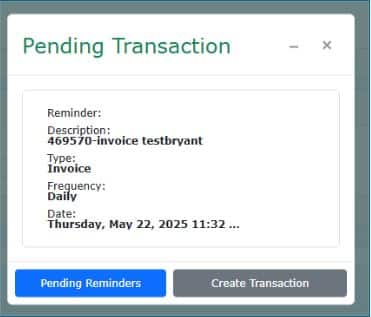 A reminder notification will show up upon logging into the software and as appropriate while you are logged into Aptora 360®. When a reminder is clicked, we show the pending transaction. A pending transaction has not been generated and has no effect on your financials (account balances). The ‘Pending Reminders button will take you to a list containing all reminders that are pending. Use the ‘Create Transaction’ to generate a financial transaction.
Memorized Transaction Tips
- Don’t confuse a memorized transaction with an actual transaction. A Memorized Transaction is a transaction that has not yet been generated (posted or saved). An example might be a check made out to pay rent. It is used as a “template” for the actual check that gets written each month. A transaction would be the actual check for January, February, March, etc.
- You can’t memorize any transaction that includes a serialized inventory item (that you sell). That’s because serial numbers were intended to be unique and not reused.
- Transactions that are created from a Memorized Transaction are no different than a transaction you create manually. You can go back and edit, delete, or change them in any way you would be able to with a manually created transaction.
- To create an “On Time” kind of reminder, set the start date and the end date to the day you want the reminder set for and set the Frequency to Daily. You still need to create Reminders.
- New Reminders versus New Reminder Items. New Reminder adds a completely new reminder. New Reminder Item adds additional dates or persons to an existing reminder.
- Reminders in the list can be added to and deleted at any time. Reminders in the list can also be checked as completed as you need.

