



Introduction to the Server Manager
Server Manager is the Windows administrative utility used to connect Time Tracker Plus to the correct server resources and to manage the high-level settings that control connectivity, diagnostics, advanced security, and selected user permission defaults. It is intended primarily for an IT professional, system administrator, consultant, or power user who is comfortable working with SQL Server, URLs, firewall rules, and Windows desktops.
In practical terms, this utility is the control panel for the server side of the solution. You use it to validate the API address, test the SQL Server connection, inspect basic server and database health information, define allowed or blocked IP address rules, manage update package information, and save the settings securely on the machine that hosts or administers the solution.
What This Utility Is For
- Store the Time Tracker Plus server URL and database connection settings.
- Validate administrator access with a 12 to 20 digit admin PIN before protected settings can be changed.
- Test the SQL Server connection and collect diagnostic information such as compatibility level, file growth, backup status, collation, edition, and recovery model.
- Test network reachability to the configured API address and open the API health check in a browser.
- Define IP filtering rules and minimum PIN-length policies.
- Manage high-level user permission defaults exposed in the utility.
- Point the utility to an update package and optional SHA256 value so update checks can be performed safely.
- Record administrative activity to the database audit trail when a database connection is available.
Security Model
Server Manager does not simply store secrets in plain text. The admin PIN is hashed with PBKDF2 using SHA-256 and a random salt. Database passwords and other protected values are stored with Windows DPAPI protection under the current Windows user context. In normal use, protected tabs remain locked until the correct admin PIN has been entered.
The utility also enforces HTTPS for the Time Tracker Plus URL unless the Allow HTTP for debugging option is turned on. That option is meant for controlled testing only. The utility warns about unsaved changes when you attempt to close the form, which helps prevent accidental loss of configuration work.
Connection Properties Tab
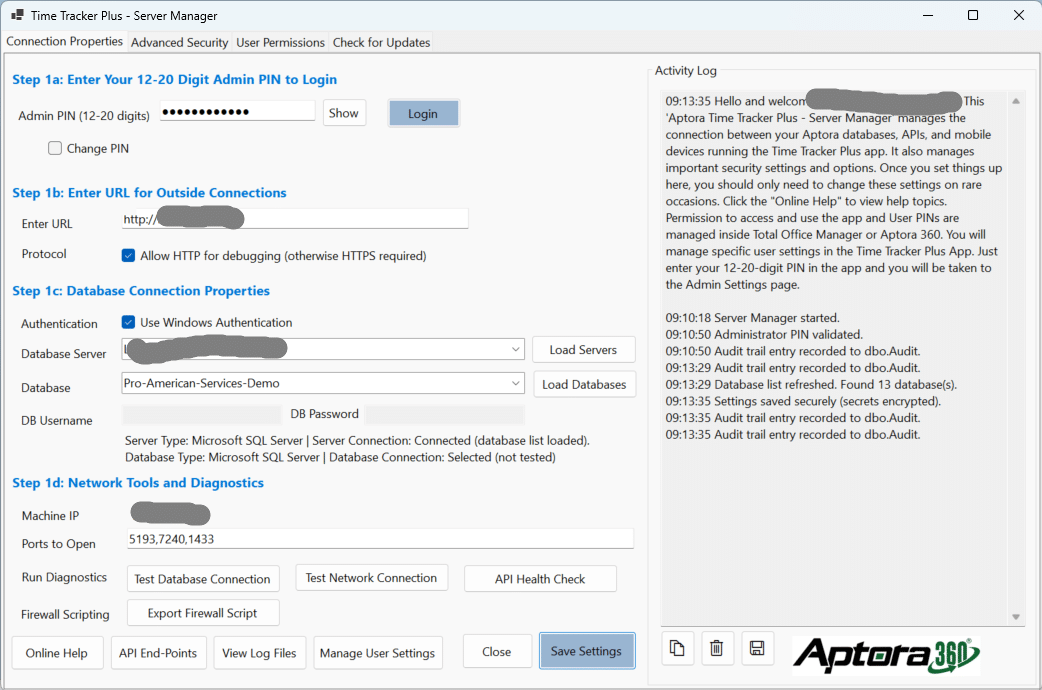
The Connection Properties tab is the main working area. It is organized as a series of steps so an administrator can log in, enter the external URL, define database connection properties, run diagnostics, and then save the finished configuration.
Connection Properties Labels and Buttons
| Label or Button | What it does | Notes |
| Admin PIN (12-20 digits) | The administrator PIN used to unlock the protected settings in Server Manager. | This PIN is for administration only. It is not used by employees to clock in or out. |
| Login | Validates the admin PIN and unlocks the restricted tabs and controls. | If the PIN is wrong, the attempt is rejected and the utility can write an audit record when a database connection is available. |
| Show / Hide | Shows or masks the Admin PIN or New Admin PIN field. | Useful during setup, but you should hide the PIN again after verifying it. |
| Change PIN | Reveals the New Admin PIN field so the current admin PIN can be replaced. | A valid existing admin PIN is still required before the change is accepted. |
| New Admin PIN (12-20) | The replacement admin PIN. | The utility requires all digits and enforces the 12 to 20 digit range. |
| Time Tracker Plus URL / Enter URL | The base URL that devices and browsers use to reach the server. | Enter the root address, not a deep page address. |
| Allow HTTP for debugging (otherwise HTTPS required) | Lets the utility accept an HTTP URL for controlled testing. | Leave this off in production whenever possible. |
| Use Windows Authentication | Tells the utility to connect to SQL Server with Integrated Security. | When this is selected, DB Username and DB Password are disabled. |
| Database Server | The SQL Server host or instance name. | You can pick a discovered server or type one manually. |
| Load Servers | Builds a list of likely SQL Server targets. | Discovery is best-effort only. It includes local candidates and can probe the local subnet on TCP 1433. |
| Database | The specific Aptora database to use. | Select the actual Total Office Manager or Aptora database for this deployment. |
| Load Databases | Connects to the chosen server and loads the available databases. | The server must be entered first. |
| DB Username | SQL login name used when SQL Server Authentication is selected. | Ignored when Windows Authentication is used. |
| DB Password | Password for the SQL login. | Stored securely with DPAPI rather than plain text. |
| Connection Status | Summary area that shows server and database connection state. | Typical values include Not tested, Connected, Selected, or Connection failed. |
| Machine IP | Displays the detected local IPv4 address. | Useful when a tablet or phone must connect across the LAN. |
| Ports to Open | Comma-separated list of ports for firewall script generation. | The default list is 5193, 7240, and 1433. |
| Test Database Connection | Attempts a short SQL connection using the current settings. | Also logs server and database diagnostics such as version, edition, collation, file sizes, growth settings, and last backup. |
| Test Network Connection | Performs a simple reachability test against the configured API address. | This confirms basic HTTP or HTTPS response behavior, not full application behavior. |
| API Health Check | Opens the API Health endpoint in a browser. | Useful when you want a more detailed server-side status report. |
| Export Firewall Script | Creates a PowerShell script that adds Windows Firewall rules for the listed ports. | The script must be run from an elevated PowerShell session to actually change the firewall. |
| Online Help | Opens the online help page for Time Tracker Plus. | Good starting point for setup guidance. |
| API End-Points | Opens the locally hosted Swagger page if Swagger is available. | Typically aimed at technical users and developers. |
| View Log Files | Opens Windows Explorer to the most recent log file location. | The default log folder is under ProgramData. |
| Manage User Settings | Opens the browser-based user settings page. | This is a bridge from the server utility to the browser administration pages. |
| Close | Closes the utility. | If unsaved changes exist, the utility asks for confirmation. |
| Save Settings | Writes the current settings to the local secure settings file. | Also attempts to write an audit record when the database connection is configured. |
| Activity Log | Read-only pane that shows operational messages produced during the session. | Use the copy, clear, and save icons to preserve or share the log. |
What the Diagnostics Actually Tell You
Test Database Connection does more than answer yes or no. When the connection succeeds, the utility queries SQL Server for practical health and compatibility details. That includes the SQL Server edition, product version, collation, default data path, default log path, default backup path, database compatibility level, recovery model, last known backup type and time when available, file sizes, file growth settings, maximum degree of parallelism, and maximum server memory. This makes the utility useful for both initial setup and general troubleshooting.
Load Servers is intentionally permissive. It adds common local names such as localhost, machine name, default instance, and SQLEXPRESS candidates, then optionally probes the local /24 subnet for hosts that appear to have TCP 1433 open. This helps hobbyists discover likely servers, but it should not be treated as an authoritative SQL discovery mechanism.
Advanced Security Tab
The Advanced Security tab controls IP filtering and PIN length policies. It is designed for administrators who want tighter access control than a basic URL and PIN setup provides.
| Label or Button | What it does | Notes |
| Enable IP Access Control (filter) | Turns IP rule evaluation on or off. | When off, requests are not filtered by these lists. |
| Enforce Allowed IP List (deny all other clients) | Creates an allow-list mode in which any IP not explicitly allowed is denied. | This is the strictest setting and is best used when the approved networks are known and stable. |
| Allowed IP Addresses | List of IP rules that are allowed to connect. | Single IPs, CIDR blocks, and explicit ranges are supported. |
| Blocked IP Addresses (deny) | List of IP rules that are always denied. | Blocked rules override allowed rules. |
| Add / Edit / Remove | Manage entries in the Allowed and Blocked lists. | Wildcards are not allowed. |
| Information Log | Read-only help area that explains supported IP formats and recommended scenarios. | Also reminds administrators about lockout delays and inactivity timeouts. |
| Minimum PIN Digits for Users (6-12) | Defines the permitted employee PIN length range displayed in the utility. | The software guidance recommends longer user PINs for better security. |
| Minimum PIN Digits for Admin (12-20) | Defines the administrator PIN length range displayed in the utility. | A 12-digit admin PIN is treated as the secure baseline. |
| Save Security Settings | Saves the IP and PIN policy settings. | If allow-list enforcement is on and the allow list is empty, the utility warns before saving. |
Supported IP Rule Formats
- Single IP address, such as 203.0.113.25
- CIDR block, such as 203.0.113.0/24 or 2001:db8::/32
- Explicit start-end range, such as 203.0.113.10-203.0.113.50
Blocked rules win over allowed rules. If Allow List enforcement is enabled, any client not on the allowed list is denied. The code does not accept wildcard entries, and it validates that IPv4 and IPv6 ranges are logically well formed.
User Permissions Tab
The User Permissions tab exposes the permission flags that the application can use to show or hide features for users. Think of these as administrative defaults or policy settings rather than day-to-day employee controls.
| Permission | Effect | Notes |
| Allow User Permissions in the App | Shows or hides the permission-management controls. | When not enabled, the permission area remains hidden. |
| Grant Admin Access | Marks the user as an administrator inside the app. | Administrators can reach higher-level app settings and reports. |
| Allow Topic Selection | Lets the user pick a topic during time entry. | Useful when the business wants categorized notes or requests. |
| Allow Notes on Clock-In | Lets the user type notes when clocking in. | Good for exceptions, reminders, or explanations. |
| Allow Notes on Clock-Out | Lets the user type notes when clocking out. | Commonly used for late corrections or HR messages. |
| Allow Mileage Entry | Allows mileage or similar odometer-type entry. | Typically used where vehicle activity must be captured. |
| Allow Work Order Selection | Lets the user choose a work order when clocking in or out. | Only meaningful where work orders are part of the workflow. |
| Collect GPS on Login/Logout | Turns GPS and device telemetry collection on for the user. | If this is off, location tracking options should be treated as inactive. |
| Location Tracking Mode | Chooses None, ClockInOutOnly, or Continuous tracking. | Continuous tracking is the most demanding mode and generally fits managed mobile devices better than ordinary browsers. |
| Allow User to View GPS Data | Displays the user’s own GPS or device-data report. | Best used with a clear privacy policy. |
| Allow User to View Timecard Report | Displays the user’s timecard report. | Lets the user review hours and period details. |
| Allow User to View PTO Report | Displays the user’s time off history report. | Useful for self-service PTO visibility. |
| Allow User to View Paystub/Paycheck | Exposes paystub or paycheck access where supported. | This is a sensitive permission and should be granted deliberately. |
Check for Updates Tab
| Label or Button | What it does | Notes |
| Installed Version | Shows the version of Server Manager currently running. | Useful when comparing against a package on disk or on a secure URL. |
| Update Package | Path or URL to the installer package to compare against. | The expected filename pattern includes a version, such as TimeTrackerPlus-1.2.3.exe. |
| Browse… | Lets you pick an installer file from disk or a share. | Good for offline or removable-media updates. |
| Release Notes URL | Stores the release notes address for this deployment. | The Open Notes button launches that address. |
| Open Notes | Opens the release notes URL in the default browser. | Useful for change review before applying an update. |
| Expected SHA256 | Optional SHA256 hash value used to validate installer integrity. | Recommended when you distribute installers through shared folders or downloads. |
| Update Status | Displays the result of the last update check. | Typical outcomes include version found, hash match, or error. |
| Check for Updates | Checks the supplied package or URL and extracts the version from the installer name. | HTTP sources are blocked unless HTTP has been explicitly allowed for debugging. |
Audit Trail Entries Written by Server Manager
When a database connection is available, Server Manager attempts to record administrative activity to dbo.Audit. This is separate from the ordinary employee clock-in and clock-out audit trail and is clearly useful for administrator accountability.
Form: Time Tracker Plus
Action: Edit
RecordID: The selected database name when known, otherwise ServerManager
dtmDate: Stored in UTC
sComputer: Windows machine name
sDBVersion: Read from dbo.AppInfo.DBVersion when available
sTOMVersion: Built from AppMajor, AppMinor, and AppRevsion in dbo.AppInfo
sDetails: Descriptive text plus whether HTTP is allowed, whether Windows Authentication is used, whether ports were configured, and the admin employee ID when known
entryType: 9 for Server Manager administrative activity
Typical Server Manager audit events include administrator PIN set, administrator PIN changed, administrator PIN validated, invalid admin PIN attempt, IP access settings changed, and general settings saved. If the utility cannot build a usable database connection string, it skips the audit write and logs that fact in the Activity Log instead of failing the whole operation.
Log Files and Troubleshooting
The utility writes its own operational log to a daily log file under ProgramData. The usual location is C:ProgramDataTimeClockServerManagerlogsserver-manager-YYYY-MM-DD.log. If Windows does not allow that path, the logger falls back to LocalAppData for the current Windows user.
- If database testing fails, verify server name, instance name, authentication mode, SQL permissions, and firewall reachability.
- If network testing fails, confirm the base URL is correct and that the API is listening on the expected port and protocol.
- If the API Health Check opens but shows databaseConnected as false, the API is running but the database connection is not configured or is failing.
- If Load Servers returns little or nothing, enter the server manually. SQL discovery is often limited by firewall and browser services.
- If Save Settings works but nothing appears in dbo.Audit, confirm the database connection settings are complete and that the Audit table is available.
Related Help Topics
https://www.aptora.com/help/tom/time-tracker-plus-360-main
https://www.aptora.com/help/tom/time-tracker-plus-360-api
https://www.aptora.com/help/tom/time-tracker-plus-360-app-help

