


Introduction
The Bill History Form provides the user a view of a specific credit, check, and discount information for review within Total Office Manager. This is a useful way to view payment history associated with a specific bill.
Form Access
-
From the main menu, click Vendors | Bill List. Then, right click on a specific bill and choose History from the pop-up menu.
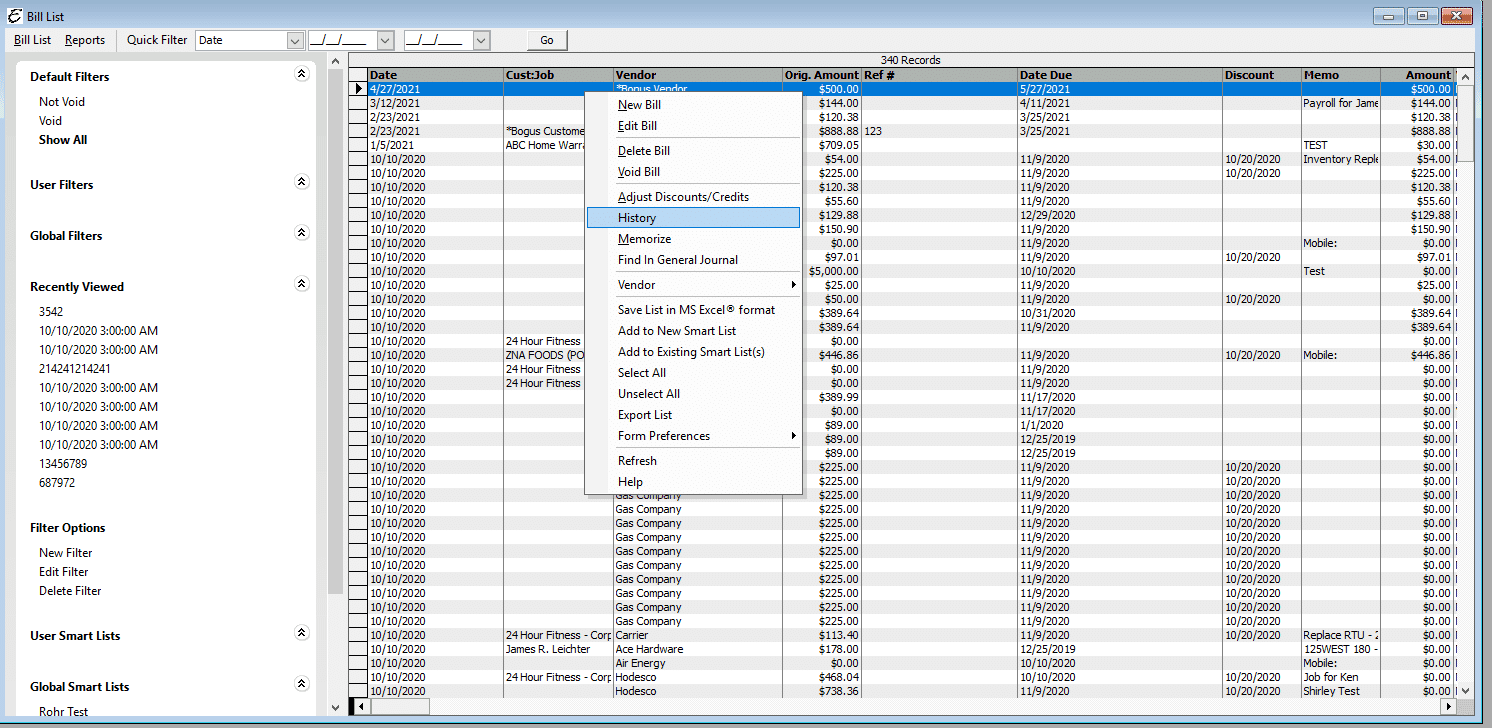
Usage of Bill History Form
To view and access the transaction(s) in the Bill History, double-click on the line item. Then, the corresponding payment will appear for review.
Field & Button Definitions of Bill History Form
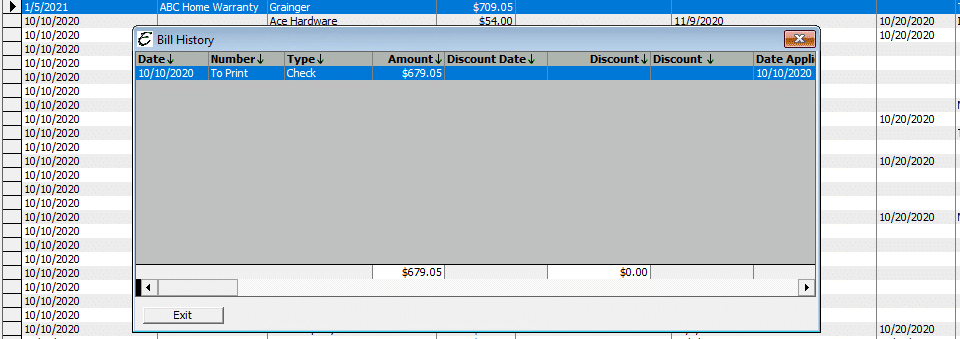
- Date – Date of the payment.
- Number – Check number assigned or a ‘To Print’ status will be reflected.
- Type – The transaction type of the payment. May be check, credit card, and/or journal entry.
- Discount Date – Date of the discount (if applicable).
- Discount Amount- Amount of the discount applied to the bill payment.
- Discount Account – The chart of account associated with the discount.
- Date Applied – Date the payment was applied to the bill.
- Exit – The Exit button is used to close the form.
Note:
You may need to expand the columns and use the scroll bar to reference each column in detail.
Related Content
https://www.aptora.com/help/tom/item-history
https://www.aptora.com/help/tom/enter-bill-for-received-items
https://www.aptora.com/help/tom/adjust-bill-discounts-and-credits

