


Introduction
Caller ID Integration gives your office staff and dispatchers real-time visibility into inbound phone activity across the company. Incoming calls are automatically identified, matched against customer records, and displayed throughout Aptora 360® so users can respond faster without manually searching the database.
Caller ID integrates with Aptora360 to give you the ability to track the financial side of the marketing campaign, including costs vs income analysis, to see which campaigns are the most successful. It gives users the opportunity to better track marketing efforts and get the most out of your budget. While there are other phone call managing software products on the market, Aptora’s Call Manager Software is the only system that links with accounting information.
The system combines:
- Live call monitoring
- Customer lookup
- Incoming call popups
- Notification center alerts
- Tracking number management
- Marketing and routing visibility
Caller ID helps reduce call handling time while improving customer response and dispatch efficiency.
Live Active Calls Dashboard
The Active Calls window provides a real-time view of all inbound calls currently active in the system.
The Active Calls panel is:
- Always visible from the main dashboard
- Accessible from anywhere in the application using the Call Icon in the header
The Active Calls grid displays:
- Caller Type
- Caller Name or Phone Number
- Tracking Number
- Termination Number
- Call Duration
Example:
Dispatchers and office staff can monitor live inbound call activity throughout the day without leaving their current screen.
This allows users to:
- See who is currently on the phone
- Monitor call activity across the office
- Quickly respond to inbound service requests
- Identify customer calls before answering
Incoming Call Popups
When a call is received, Aptora360 automatically displays an incoming call popup.
The popup behavior changes depending on whether the caller already exists in the database.
Existing Customer Calls
If the incoming phone number matches a customer record:
- Caller Type displays as Customer
- The customer’s name is shown automatically
- Users can immediately:
- Open the customer record
- View customer history
- Access related records
Available actions include:
| History: | Opens customer-related activity and records |
| Open: | Opens the customer profile directly |
| Cancel: | Closes the popup |
Result:
Staff immediately know who is calling and can begin assisting the customer without manually searching.
This is especially useful for:
- Dispatching
- Service calls
- Collections
- Warranty support
- Maintenance agreement customers
Unknown Caller Workflow
If the incoming number does not match an existing record:
- Caller Type displays as Unknown
- The incoming number is still shown
- Users may immediately create a:
- New Customer
- New Vendor
- New Employee
Available actions include:
|
What it does | |
| New Customer: | Creates a new customer record | |
| New Vendor: | Creates a vendor record | |
| New Employee: | Creates an employee record | |
| Cancel: | Closes the popup |
Result:
New callers can quickly be converted into customers or contacts without retyping phone information.
Notification Center Integration
Incoming calls are also added to the Aptora360 Notification Center.
Notifications may include:
- Incoming call alerts
- Call reminders
- Recent call activity
This allows users to:
- Review calls after dismissing the popup
- Monitor missed activity
- Keep call notifications centralized with other reminders
Tip:
Notifications remain available even after the original call popup is closed.
Caller ID Preferences & Tracking Numbers
Caller ID configuration is managed from:
Company > Preferences > Integrations > Caller ID
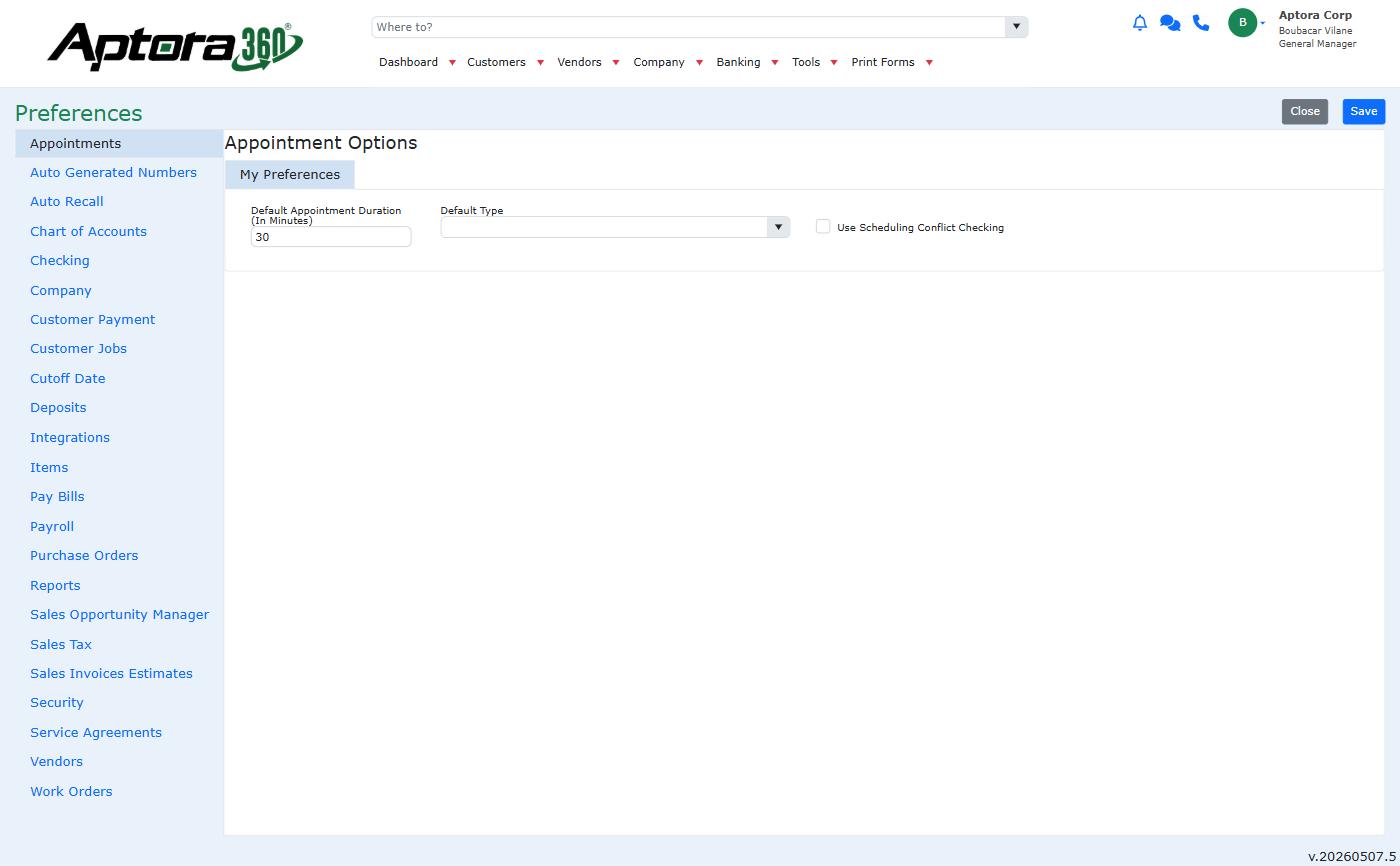
This screen displays all purchased and configured tracking numbers.
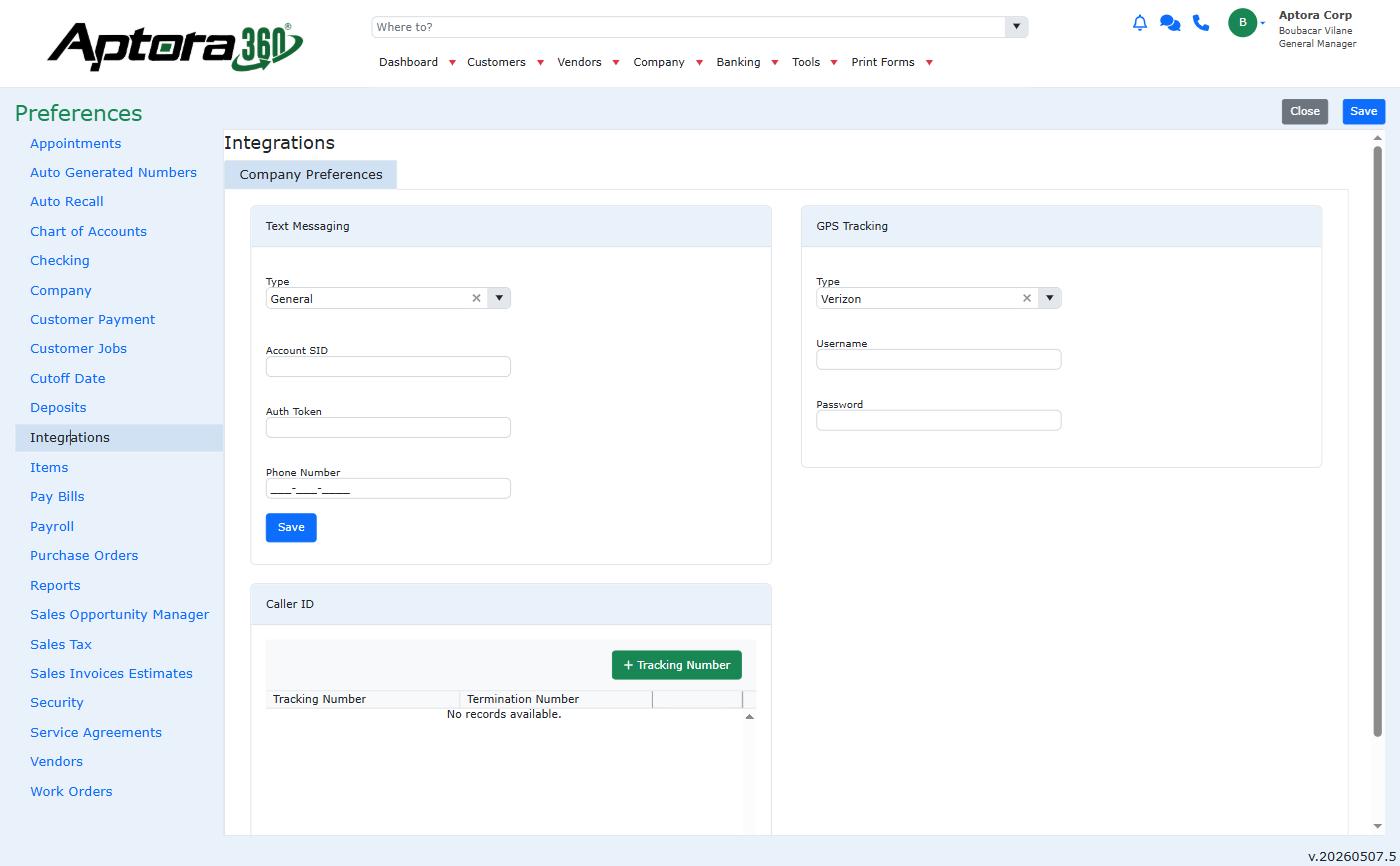
From this screen users can:
- View existing tracking numbers
- Add new tracking numbers
- Delete tracking numbers
- Configure termination numbers

Tracking Numbers Explained
Tracking Number
The Tracking Number is the phone number customers dial.
This number is commonly used for:
- Marketing campaigns
- Website call tracking
- Service advertisements
- Dedicated routing lines
Termination Number
The Termination Number is the destination phone number that actually rings when the tracking number receives a call.
Examples include:
- Office lines
- Dispatch phones
- Mobile forwarding numbers
- Call center lines
Example:
Customer calls the Tracking Number → Call forwards to the Termination Number.
Adding Tracking Numbers
To add a new tracking number:
- Open:
Company > Preferences > Integrations > Caller ID - Click Add Tracking Number
- Search for available numbers
- Select the desired tracking number
- Enter the Termination Number
- Save
Searching for Local Numbers
Users may enter a local phone number or area code during the search process to help locate tracking numbers in a desired geographic area.
Note:
Available numbers depend on provider inventory and regional availability.
Deleting Tracking Numbers
Tracking numbers may be removed directly from the Caller ID Preferences screen.
To remove a tracking number:
- Locate the number in the list
- Click the delete button
- Confirm removal
Important:
Removing a tracking number stops inbound routing and tracking for that number.
Customer Matching
When a call is received, Aptora360 attempts to match the incoming phone number against customer records.
The system may search:
- Main phone number
- Mobile phone number
- Work phone number
- Additional phone fields
If a match is found:
- Customer-specific options appear
If no match is found:
- New record creation options appear instead
Common Uses
| Situation | Benefit |
| Dispatch receives inbound service calls: | Faster customer lookup |
| Existing customer calls office: | Immediate account visibility |
| Unknown caller contacts office: | Quickly create new customer record |
| High inbound call volume: | Reduce manual searching |
| Marketing campaigns: | Track inbound calls by number |
| Multiple office lines: | Centralized live visibility |
Best Practices
Keep Phone Numbers Updated
Caller matching depends on accurate customer phone records.
Use Different Tracking Numbers for Marketing
Assign separate tracking numbers to:
- Websites
- Advertising campaigns
- Service areas
- Seasonal promotions
This helps measure marketing performance more accurately.
Train Staff on Popup Workflows
Employees should understand:
- Existing customer workflow
- Unknown caller workflow
- Quick access buttons
- Notification review
Tips
- The Active Calls panel is ideal for dispatch screens.
- Incoming call popups reduce customer lookup time.
- Tracking numbers can help identify which marketing efforts generate calls.
- Unknown callers can quickly become customer records.
- Notification Center history helps users review recent inbound activity.

