


How to Cancel Your Subscription
Overview
You can cancel your Aptora360 subscription at any time — no phone calls, no waiting on hold, and no cancellation fees. The entire process takes less than two minutes and is completed entirely within your account settings. This applies to All active subscription plans (Starter, Professional, Enterprise).
After cancellation, your account remains fully active and functional until the last day of your current billing period. This means:
• All users on your account retain full access until the billing period ends
• No data is deleted or lost immediately upon cancellation
• No further charges are made after the current billing period closes
• You can reverse the cancellation at any time before the period ends
Before You Begin
Make sure you are logged in as an Account Administrator (It needs to be the email of the user who created the company originally).
Regular users and managers do not have access to subscription controls. If you are unsure of your role, check with your account owner or IT administrator.
If you have multiple Aptora360 accounts, confirm you are logged into the correct one before proceeding.
Prerequisites
Before starting the cancellation process, verify the following:
• Administrator access: You must be logged in as an Account Administrator. The Cancel Subscription button will not be visible to users with lower permission levels.
• Active subscription: Your account must have an active, paid subscription. If your account is already on a free tier or has previously been cancelled, these steps do not apply.
• Correct account: If your organization manages multiple Aptora360 accounts, confirm you are cancelling the intended account.
• Billing awareness: Note your next billing date. Cancellations take effect at the end of the current period, so timing matters if you want to maximize the value of your current payment.
Steps to Cancel Your Subscription
Follow these steps in order. The process is completed entirely within the License Management section of your account.
Step 1 Navigate to License Management
Log in to your Aptora360 account and go to the License Management page via Account Settings or Billing in the main navigation menu.
On the License Management page, you will see a full summary of your current plan, including your billing period, number of active users and companies, and all applications included in your subscription.
In the top-right corner of the page, two action buttons are visible:
• Cancel Subscription (red button): Initiates the cancellation workflow
• Manage Subscription (blue button): Opens plan upgrade, downgrade, or modification options
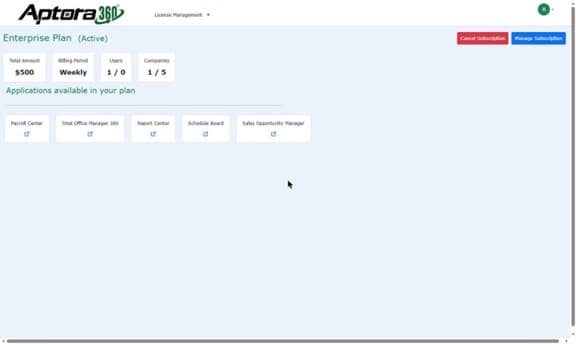
Figure 1: License Management page showing the active Enterprise Plan with the Cancel Subscription (red) and Manage Subscription (blue) buttons in the top-right corner
Tip
If you do not see the Cancel Subscription button, your user account likely does not have Administrator-level permissions. Contact your account owner to request access, or ask them to perform the cancellation on your behalf.
Step 2 Click “Cancel Subscription”
Click the red Cancel Subscription button in the top-right corner of the License Management page.
A confirmation dialog box will appear in the center of the screen asking you to confirm the cancellation. It displays your current plan name and the exact expiry date if you proceed.
The dialog provides two options:
• Yes: Confirms the cancellation and immediately processes the request
• No: Dismisses the dialog without making any changes. Your subscription remains fully active.
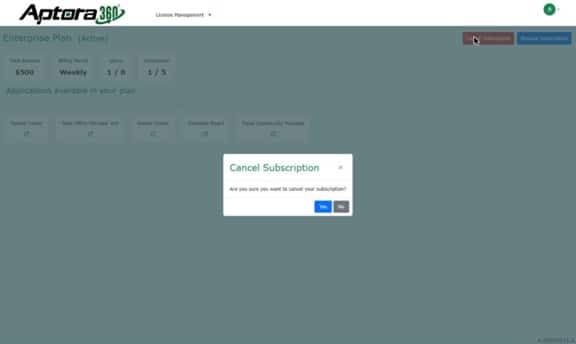
Figure 2: Confirmation dialog asking “Are you sure you want to cancel your subscription?” with Yes and No buttons
| Important
Clicking Yes is the point of no return for the immediate session. However, you can still reverse the cancellation afterward using the Resume Subscription button. See the “How to Resume Your Subscription” section below. |
Step 3 Confirm the Cancellation
Click Yes in the confirmation dialog to complete the cancellation.
The page will immediately refresh and update to reflect the cancellation. You will see the following changes:
• Your plan name displays as “Enterprise Plan (Cancelled)” in red text
• A yellow notification banner confirms the cancellation and shows the exact expiry date
• The Cancel Subscription button is replaced by a blue Resume Subscription button
• All other account details, users, and applications remain unchanged until expiry
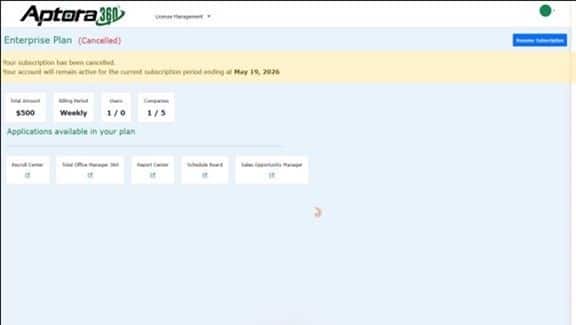
Figure 3: Post-cancellation state: plan labeled as “(Cancelled)” in red, yellow notification banner showing the subscription end date (May 19, 2026), and the Resume Subscription button (top-right)
No confirmation email is required to complete the process. The cancellation is effective immediately upon clicking Yes, though your access continues until the end of the billing period.
What Happens After Cancellation
Understanding what changes (and what does not) after cancellation helps avoid confusion during the remaining active period.
| Topic | What to Expect |
| Account Access | Remains fully active for all users until the end of the current billing period. No features are disabled early. |
| Your Data | All data (records, reports, documents, user settings) is preserved throughout the remaining active period. |
| Billing | No additional charges will be made. Your final invoice covers the current period only. |
| Users & Access | All active users continue to have normal access until the expiration date. |
| Notifications | Account administrators will receive email reminders as the expiration date approaches (typically 7 days and 1 day before). |
| Post-Expiry | Once the billing period ends, user access is suspended. Contact Aptora Support to retrieve data after this point. |
How to Resume Your Subscription
If you cancelled by mistake or want to continue using Aptora360, you can reactivate your subscription at any time before the billing period expires.
Steps to Resume
Step 1. Log in to your Aptora360 account
Step 2. Navigate to the License Management page
Step 3. Click the blue Resume Subscription button in the top-right corner
Step 4. A confirmation dialog will appear — click Yes to confirm reactivation
Step 5. Your subscription status will immediately return to active
Upon resuming:
• Your plan name returns to its normal display (the “(Cancelled)” label is removed)
• The yellow cancellation banner disappears
• Billing continues on its original schedule — no changes to your billing date or amount
Note
You cannot resume a subscription after the billing period has already expired. If your account has fully closed, you will need to start a new subscription by contacting Aptora Support or visiting the pricing page.
Troubleshooting
The Cancel Subscription button is not visible
This is almost always caused by insufficient permissions. Only Account Administrators can see and use the Cancel Subscription button.
• Confirm your role in your user profile or account settings
• Contact your account owner to grant Administrator access or cancel on your behalf
• Contact Aptora Support if you believe you should have access but the button is still missing
The confirmation dialog does not appear after clicking Cancel Subscription
• Disable browser pop-up blockers temporarily and try again
• Try a different browser (Chrome, Firefox, Edge)
• Clear your browser cache and cookies, then reload the page
I received an unexpected charge after cancelling
• Check your cancellation confirmation — the yellow banner shows the exact expiry date
• If billed within 24 hours of cancellation, the billing cycle may have renewed before processing
• Contact Aptora360 billing support with your account details and cancellation date
My account expired and I still need my data
• Contact Aptora Support as soon as possible after expiry
• Data may be recoverable within a grace period (typically 30–90 days, depending on your plan)
• Enterprise customers should refer to their service agreement for specific data retention terms
Frequently Asked Questions
Can I get a refund after cancelling?
Aptora360 subscriptions are generally non-refundable for the current billing period. If you believe you are entitled to a refund due to a service issue or billing error, contact Aptora Support with your account details.
What happens to my users after cancellation?
All users retain full access until the subscription expiry date. After the expiry date, all users lose access simultaneously.
Can I cancel only part of my subscription?
Partial changes are handled through the Manage Subscription option, not Cancel Subscription. Click the blue Manage Subscription button to adjust your plan, add or remove users, or modify included modules.
Will I receive a confirmation email?
Aptora360 typically sends a cancellation confirmation email to the Account Administrator shortly after processing. If you do not receive one within a few hours, check your spam folder or contact support.
Can a non-administrator cancel the subscription?
No. Only users with Account Administrator permissions can cancel a subscription.
Need Help?
If you encounter any issues not covered in this guide, Aptora Support is available to assist you.

