


Introduction
The Workflow Navigator provides a GUI (Graphical User Interface) for common workflow processes. Its purpose is to use picture icons and diagrams to steer through ordinary tasks and to access often-used lists and reports.
Form Access
-
The workflow navigator widget will display automatically on the homepage after logging into Aptora360.
Field & Button Definitions
Five panes of view are available from the menu area of the workflow navigator. Click through the menu bar to change the appearance of the navigator to view the options for the related category.
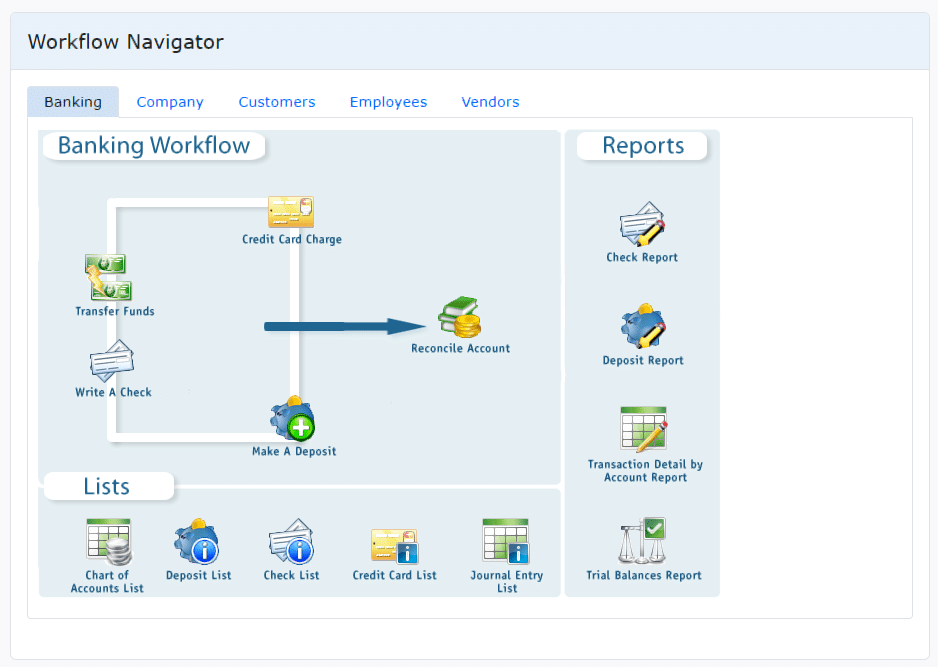
- Banking – Displays the Banking Workflow pane.
- Company – Displays the Company Workflow pane.
- Customers – Displays the Customers Workflow pane.
- Employees – Displays the Employees Workflow pane.
- Vendors – Displays the Vendors Workflow pane.
Usage
Each pane of the workflow navigator is divided into three areas: the Workflow area, the Lists area, and the Reports area.
The Workflow Area
The Workflow area of any pane illustrates each task and sequence of events for the given work process. Click on an icon for the corresponding form to open and perform that task.
The Lists Area
The Lists area of any pane provides access to commonly used lists related to a given workflow. Click on an icon for the corresponding form to open and perform that task.
The Reports Area
The Reports area of any pane provides access to commonly used reports related to a given workflow. Click on an icon for the corresponding form to open and perform that task.
Tips
- The workflow navigator widget can be dragged or adjusted by clicking and holding in the title panel to move it around the page, or by clicking and holding on the edges of the widget container to resize the window.

