This knowledgebase article explains why a field you expected to see may be missing from a form in Aptora 360 — and how to turn it back on. Most detail forms (Invoices, Estimates, Bills, Purchase Orders, and more) let each user choose which optional fields and columns appear, using a window called Form Preferences. If a field is not on your form, it is almost always because it is turned off — not because it is missing.
Why a Field Might Be Missing
Aptora 360 forms include many optional fields so the software can fit a wide range of businesses. To keep your screen uncluttered, you can hide the fields you don’t use and show the ones you do. Those choices are stored in Form Preferences. Two things are important to understand:
- Hidden is not the same as removed. Turning a field off only hides it on your screen. Any data already saved in that field is kept.
- Form Preferences are per user. Your choices affect only your login. If a coworker needs the same field, they turn it on under their own login.
Note: Coming from Total Office Manager? A few fields that appeared by default in TOM are turned off by default in Aptora 360 — for example, the Stage field on Estimates. The field is still there; you just enable it in Form Preferences using the steps below.
How to Show (or Hide) a Field
Follow these instructions to turn a field on or off. We’ll use the Stage field on an Estimate as the example, but the same steps work on any form that has Form Preferences.
- Open the form. For example, click Customers > New Estimate, or open an existing estimate.
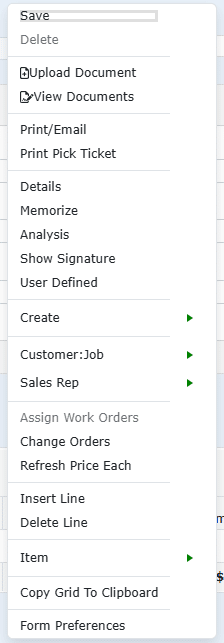
- Right-click anywhere on the form.
- Click Form Preferences (near the bottom of the menu).
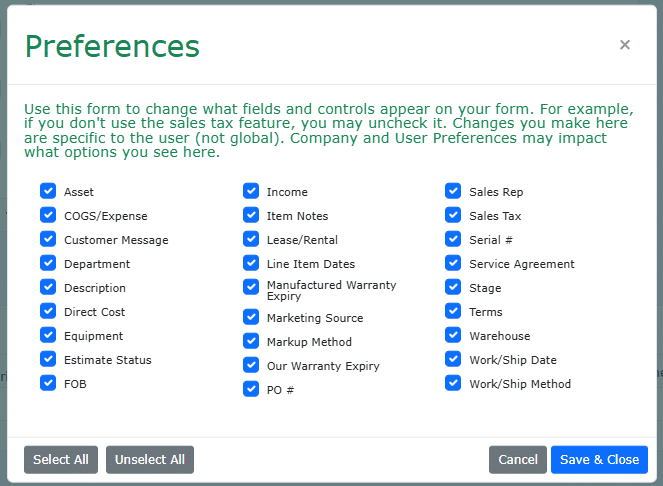
- In the Preferences window, check the box for each field you want to see — for example, Stage. Uncheck any field you want to hide.
- Click the Save & Close button.
The form refreshes and the field you enabled now appears — on this form and on new records of the same type.
Pro Tip: Use Select All or Unselect All in the Preferences window to turn every option on or off at once, then fine-tune from there. Remember that these settings are saved per user, so each person who wants a field enables it under their own login.
Which Forms Have Form Preferences
Look for Form Preferences on the right-click menu of these forms. Each form has its own list of optional fields.
| Form | What you can show or hide |
|---|---|
| Invoices, Estimates, Credits & Sale Receipts | These four forms share one set of options, including Stage, PO #, Estimate Status, Department, Terms, Service Agreement, Sales Rep, Sales Tax, Marketing Source, Warehouse, Serial #, Item Notes, the warranty-expiration dates, and the cost/income columns. |
| Purchase Orders | Line-grid columns such as Customer:Job, Department, Received, Back Order, Rate, Reimbursable, WO #, and quantity totals. |
| Bills | Two separate grids — Items and Expenses — each with its own columns (e.g., Department, Customer:Job, Marketing, Memo, Reimbursable, WO #). |
| Customer:Job (Contacts) | The columns of the Contacts grid, such as Title, Cell, Fax, Email, Preferred Contact Method, and Purchasing Role. |
Turning on Stage for Estimates? Because Invoices, Estimates, Credits, and Sale Receipts share the same preferences, enabling Stage shows it on all four of those forms — not on Estimates alone.
Fields Controlled Elsewhere (Not in Form Preferences)
Form Preferences is only one of the ways a field can be hidden. A field may also depend on:
- Company Preferences — company-wide settings that affect what everyone sees. (The Preferences window notes this: “Company and User Preferences may impact what options you see here.”)
- Whether a feature is turned on — for example, Labor Cost and Labor Minutes appear only when payroll costing applies to your company.
- Your security permissions — some fields (such as cost figures) are only shown to users who are allowed to see them.
If a field is not listed in the Form Preferences window at all, it is being controlled by one of these settings rather than by you. Contact your administrator or Aptora Support.
Frequently Asked Questions
Q: I created a new Estimate and there is no Stage field. Where did it go?
A: The Stage field is turned off by default. Right-click the estimate, click Form Preferences, check Stage, and click Save & Close. Stage will then appear on your estimates.
Q: I turned a field on, but my coworker still doesn’t see it. Why?
A: Form Preferences are saved per user. Each person turns on the fields they want under their own login.
Q: A field isn’t listed in the Form Preferences window at all. How do I get it?
A: That field is controlled by a company-level setting, a feature that isn’t enabled, or your security permissions — not by Form Preferences. Contact your administrator or Aptora Support.
Tips
- If a field seems to have “disappeared,” check Form Preferences first — it is usually just switched off, not gone.
- Use Form Preferences to declutter: hide the fields and columns your company never uses so data entry is faster.
- Remember that these settings are per user. Set them once on each login that needs them.
- Enabling a field does not change any existing records — it only changes what you see.